1. Make sure you are using OpenDNS (Get started).
2. Sign in or create a free account.
3. Add a network to your account.
If you already have a network in your OpenDNS account, you may skip this step.
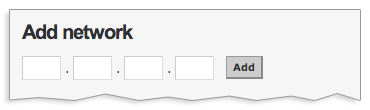
- Add a single IP address or a range of addresses to create a network.
- OpenDNS supports dynamic IP addresses, common for cable, DSL, and dial-up customers.
4. Turn on adult site blocking for your network(s).
From the Networks page, click on the wrench icon ( ) to edit Settings for that network. (Or click on the Settings tab in the Dashboard and navigate to the appropriate network.)

Check the box for each category you would like to block, then Save.
5. Wait 3 minutes for your preferences to be pushed to all servers.
You may then test by visiting exampleadultsite.com. Make sure any local caches (browser, computer, router, firewall, etc.) are cleared before if you think it's not working.
Note: Nothing on exampleadultsite.com is adult. The site is owned and operated by OpenDNS and has been reviewed by the St. Bernard iGuard team as adult for demonstration purposes only.


No comments:
Post a Comment